
How Azure Data Factory Works Behind the Scenes.
Imagine you’re working as a data engineer in a company where customer orders, website activity, payment transactions, and inventory updates are generated every minute. Every night, millions of records need to be copied from different databases into a central data lake so analysts can prepare reports the next morning. You create an Azure Data Factory pipeline, click Trigger Now, and after a while, the pipeline shows a green “Succeeded” status. For many beginners, that’s where the story ends. The data has moved, the pipeline succeeded, and the dashboard looks healthy. But if someone asks, “What actually happened after you clicked Trigger?”, the answer is often unclear.
Did Azure Data Factory copy every record itself? Where did the data actually travel? What is Integration Runtime doing? Why does the same pipeline finish in ten minutes one day but take thirty minutes the next? And when a company copies hundreds of gigabytes—or even terabytes—of data every day, how does Azure Data Factory manage such large workloads without becoming a bottleneck?These are not just interview questions. They are questions every data engineer eventually faces while working on real projects.
This article is written for freshers, aspiring data engineers, ETL developers, and professionals who have started using Azure Data Factory but want to understand how it works behind the scenes, not just how to drag activities onto a canvas. By the end of this article, you’ll have a clear mental model of pipeline execution, Integration Runtime, Data Integration Units (DIUs), Copy Activity, monitoring, and the common mistakes that affect both performance and cost.
Before We Begin: Think Beyond the Pipeline Designer
Most Azure Data Factory tutorials focus on building pipelines. You create a Linked Service, define a Dataset, drag a Copy Activity, connect a source and destination, and run the pipeline. While this teaches you how to use the product, it doesn’t explain why the pipeline behaves the way it does. This is similar to learning how to drive a car without understanding what happens when you press the accelerator. You may know how to reach your destination, but when the engine starts making unusual noises or the fuel efficiency suddenly drops, you won’t know where to look. Azure Data Factory works in much the same way. Building a pipeline is relatively straightforward. Designing efficient, reliable, and cost-effective pipelines requires understanding what happens underneath. Once you understand the architecture, many confusing concepts—such as Integration Runtime, DIUs, parallel copy, retry behavior, and pipeline monitoring—begin to make sense.
One lesson I’ve learned from working on enterprise data platforms is that performance problems rarely originate where people first suspect. When a pipeline slows down, many teams immediately blame Azure Data Factory. In reality, ADF is often exposing existing problems such as slow databases, poor network connectivity, badly written SQL queries, or inefficient file layouts. Understanding the architecture helps you diagnose the real cause instead of guessing.
The Biggest Misconception About Azure Data Factory
One of the most common misconceptions among beginners is that Azure Data Factory is a data processing engine. Since it is responsible for moving data between systems, it’s easy to imagine that every file, row, and byte passes through Azure Data Factory itself. In reality, that’s not how the platform is designed.
Azure Data Factory is primarily an orchestration service. Its main responsibility is to coordinate, schedule, monitor, and manage data movement. It decides what should happen, when it should happen, and in what sequence different activities should execute. The heavy lifting is performed elsewhere.
A useful analogy is an airport control tower.
Every day, hundreds of aircraft take off and land at busy airports around the world. The control tower manages runway assignments, monitors aircraft positions, grants takeoff permissions, coordinates arrivals, and ensures flights don’t interfere with one another. Yet the control tower never flies the aircraft.
Azure Data Factory plays a very similar role. It coordinates the movement of data but doesn’t necessarily transport or process the data itself. Instead, it delegates the execution to another component specifically designed for that purpose.
That component is called the Integration Runtime, and it is arguably the single most important concept in Azure Data Factory.
Understanding this distinction immediately answers one of the most frequently asked interview questions:
Does data actually flow through Azure Data Factory?
In most scenarios, no. Azure Data Factory orchestrates the workflow, while the Integration Runtime performs the actual movement of data between the source and destination. This architecture allows ADF to scale efficiently without becoming the bottleneck, even when organizations move hundreds of gigabytes or terabytes of data every day.
What Actually Happens When You Click “Trigger Now”?
Let’s walk through a simple example. Suppose your organization has an on-premises SQL Server containing sales transactions, and every night those transactions must be copied into Azure Data Lake Storage for reporting and analytics. From the Azure portal, you manually trigger a pipeline. To you, it looks like a single click. Behind the scenes, however, Azure Data Factory begins a sequence of coordinated operations.
First, it reads the pipeline definition stored within your ADF instance. It identifies the activities that need to run, checks their execution order, and validates the dependencies between them. Next, it examines the Linked Services to determine where the source and destination systems are located and how they should be authenticated. It then loads the associated Datasets, which describe the structure and location of the data that will be copied. Only after these validations succeed does Azure Data Factory decide which Integration Runtime should execute the work. If the source and destination are Azure services, it may choose an Azure Integration Runtime. If the source resides inside a private corporate network, it may instead use a Self-Hosted Integration Runtime installed within the organization’s infrastructure. Notice something important here: at this stage, no business data has moved yet. Azure Data Factory is preparing the execution plan, validating configurations, selecting the appropriate execution engine, and coordinating the workflow. The actual data transfer hasn’t even begun.
This separation between orchestration and execution is one of the reasons Azure Data Factory scales so effectively in enterprise environments. The orchestration layer remains lightweight while specialized runtime components handle the demanding task of reading, transferring, and writing large volumes of data.
Integration Runtime: The Real Engine Behind Every Pipeline
If Azure Data Factory is the brain that decides what needs to happen, then Integration Runtime (IR) is the muscle that actually performs the work. Almost every important operation inside Azure Data Factory eventually depends on an Integration Runtime. Without it, a pipeline may exist on your screen, but it cannot read data, write data, connect to external systems, or execute integration activities.
Think of a construction company building a new office. The project manager creates the schedule, assigns tasks, tracks deadlines, and coordinates different teams. However, the manager doesn’t pour concrete, install electrical wiring, or paint the walls. Those tasks are performed by engineers, electricians, and construction workers. Azure Data Factory behaves in exactly the same way. It coordinates the workflow, while the Integration Runtime carries out the physical work. This separation of responsibilities makes Azure Data Factory highly scalable because Microsoft can improve orchestration independently from execution.
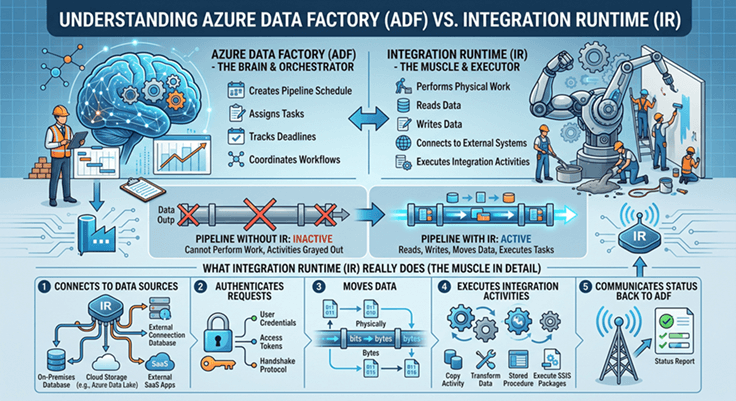
In interviews, candidates are often asked, “What is Integration Runtime?” Many answer by saying, “It’s a compute engine.” While technically correct, that answer barely scratches the surface. A better answer would be:
Integration Runtime is the execution infrastructure that Azure Data Factory uses to connect to data sources, authenticate requests, move data, execute integration activities, and communicate execution status back to Azure Data Factory.
Once you understand this definition, many ADF concepts start fitting together naturally.
The Three Types of Integration Runtime
Azure Data Factory provides three different Integration Runtime options because not every organization stores its data in the same place.
1. Azure Integration Runtime
This is the default runtime created automatically when you build an Azure Data Factory instance. Suppose your source is Azure SQL Database and your destination is Azure Data Lake Storage. Both systems already exist inside Microsoft’s cloud, so Azure can securely connect to them without any additional infrastructure from your side. When the pipeline starts, Microsoft provisions the necessary resources, establishes secure connections, copies the data, reports execution statistics, and automatically releases the resources when the work is complete. As developers, we never need to install servers or worry about operating system patches because Microsoft manages everything.
For most cloud-to-cloud integrations, Azure Integration Runtime is the preferred choice because it offers simplicity, scalability, and minimal administrative effort.
2. Self-Hosted Integration Runtime
Now consider a different scenario. A manufacturing company stores production data inside an SQL Server located in its own data center. That database sits behind a corporate firewall and is not exposed to the internet for obvious security reasons. If Azure Data Factory attempted to connect directly, the connection would fail because Azure has no route into the organization’s private network. This is where Self-Hosted Integration Runtime (SHIR) becomes essential. Instead of Azure entering the corporate network, the organization installs a lightweight Integration Runtime service on one of its own Windows servers. That server establishes an outbound encrypted connection to Azure, which is much safer than opening inbound firewall ports. When a pipeline executes, Azure Data Factory sends instructions to the Self-Hosted Integration Runtime. The runtime connects to the local SQL Server, reads the required data, securely transfers it to Azure, and reports the execution status back to Azure Data Factory. You can think of Self-Hosted Integration Runtime as a trusted courier who already has access to the building. Azure doesn’t need to force its way inside—it simply hands the courier a list of instructions.
One common mistake I see among beginners is assuming Self-Hosted Integration Runtime stores data permanently. It doesn’t. It simply acts as a secure execution bridge between your private environment and Azure.
3. Azure-SSIS Integration Runtime
Many enterprises have spent years developing SQL Server Integration Services (SSIS) packages. Rewriting hundreds of packages into Azure Data Factory would require significant time and effort. Azure-SSIS Integration Runtime solves this migration challenge by allowing organizations to execute existing SSIS packages inside Azure without redesigning every workflow from scratch.
Although modern cloud-native projects often rely on Copy Activity, Data Flows, or Databricks, Azure-SSIS Integration Runtime continues to play an important role for organizations modernizing legacy ETL systems.
What Are Data Integration Units (DIUs)?
Now let’s talk about one of the most frequently asked Azure Data Factory interview topics that many introductory articles completely ignore.
Data Integration Units (DIUs).
Whenever a Copy Activity executes using Azure Integration Runtime, Azure Data Factory allocates compute resources behind the scenes. Those compute resources are measured using Data Integration Units, commonly known as DIUs. A simple way to think about DIUs is to imagine a team unloading a truck full of packages. If only two workers are unloading boxes, the truck takes longer to empty. If ten workers unload the same truck simultaneously, the work finishes much faster. DIUs work in a similar way. They represent the processing power Azure allocates for a Copy Activity. In many scenarios, increasing DIUs allows Azure Data Factory to read data faster, transform it more efficiently during transfer, and write it to the destination more quickly. However, this is where experience becomes important. Many beginners believe increasing DIUs automatically makes every pipeline faster. That isn’t always true. Imagine you’re filling a bucket using a narrow garden hose. Replacing the person holding the bucket won’t increase the water flow because the hose itself is the limitation.
Similarly, if your SQL Server can only deliver data at 50 MB per second, allocating additional DIUs won’t magically increase the database’s throughput. The bottleneck exists at the source, not inside Azure Data Factory.
This is an important production lesson:
Increasing compute cannot solve every performance problem. First identify where the bottleneck actually exists.
From a cost perspective, DIUs also matter because allocating more compute resources generally increases the execution cost of your pipeline. Optimizing DIUs is therefore not just about performance—it’s also about spending cloud resources wisely.
How Copy Activity Actually Moves Your Data
Copy Activity is probably the most frequently used activity in Azure Data Factory, but most tutorials explain it in only one sentence: “It copies data from source to destination.” While true, it hides a lot of interesting engineering happening behind the scenes. Imagine a retail company that wants to copy yesterday’s sales transactions from SQL Server into Azure Data Lake every night. The moment the Copy Activity starts, Azure Data Factory first retrieves the connection information from the Linked Services. Instead of hardcoding usernames and passwords inside the pipeline, authentication details are often stored securely using Azure Key Vault or managed identities. This improves security and avoids exposing sensitive credentials inside pipeline definitions. Once authentication succeeds, the selected Integration Runtime establishes connections with both the source and destination systems. It begins reading data from the source, often using multiple parallel readers depending on the source type and configuration. Rather than moving one record at a time, Azure Data Factory attempts to maximize throughput by transferring data efficiently in batches.
As the data flows, the Integration Runtime monitors throughput, network performance, retry attempts, and any transient failures. If a temporary network interruption occurs, Azure Data Factory can automatically retry the operation according to the configured retry policy instead of immediately marking the pipeline as failed. Finally, once all records have been written successfully, execution statistics such as rows copied, data volume transferred, throughput, execution duration, and DIU utilization are sent back to Azure Data Factory, where they become visible in the monitoring dashboard. From the user’s perspective, all they see is a green “Succeeded” icon. Behind that single icon, however, Azure Data Factory has coordinated authentication, connection management, resource allocation, parallel processing, retry logic, monitoring, and detailed logging.
That is why understanding Copy Activity is far more valuable than simply memorizing its configuration options.
How Azure Data Factory Moves 100 GB or Even 1 TB of Data
One question that surprises many beginners is:
“If Azure Data Factory is only orchestrating the pipeline, how does it move hundreds of gigabytes—or even terabytes—of data without becoming painfully slow?”
The answer lies in parallelism. Imagine you need to move 10,000 boxes from one warehouse to another. If a single worker carries one box at a time, the work might take an entire day. Hiring a stronger worker won’t necessarily solve the problem because one person can only carry so much. Now imagine twenty workers moving boxes simultaneously. The total amount of work hasn’t changed, but the time required drops dramatically because the work is distributed. Azure Data Factory follows a very similar principle. Instead of reading one row after another, Copy Activity can read multiple chunks of data simultaneously, provided the source system supports parallel reads. Likewise, the destination can receive multiple streams of data concurrently. The Integration Runtime coordinates these parallel operations, allowing very large datasets to be transferred efficiently.
For example, suppose you need to copy a 100 GB sales table from Azure SQL Database to Azure Data Lake Storage. If the source database allows multiple parallel readers and the destination supports concurrent writes, Azure Data Factory can split the workload across several threads. Instead of waiting for one long sequential transfer, multiple portions of the dataset are copied at the same time.
In many real-world scenarios, increasing parallelism can reduce execution time significantly. However, this doesn’t mean every pipeline should simply use the maximum possible number of parallel threads. More parallelism also means more pressure on the source database, increased network utilization, and higher compute consumption. A busy production SQL Server that already serves thousands of application users might become slower if dozens of parallel readers suddenly start scanning large tables.
Experienced engineers therefore treat parallelism as a balancing act rather than a race. The objective isn’t to consume the maximum available resources—it is to finish the workload efficiently without negatively affecting other systems.
When More DIUs Will Not Make Your Pipeline Faster
One of the most common misconceptions in Azure Data Factory is that increasing Data Integration Units automatically improves performance. This assumption sounds reasonable because additional compute resources generally help in many cloud services. Unfortunately, data integration doesn’t always work that way. Imagine you’re downloading a large file using an internet connection that delivers only 50 Mbps. Replacing your laptop with a much faster computer won’t suddenly increase your download speed because the internet connection—not the computer—is the limiting factor. Exactly the same principle applies to Azure Data Factory. Suppose your source system is an on-premises SQL Server connected through a slow VPN. Even if you double the DIUs, the SQL Server can still send data only as fast as the network allows. The bottleneck remains outside Azure Data Factory. Similarly, poorly written SQL queries can become another hidden bottleneck. If your Copy Activity executes a query that scans millions of unnecessary rows or performs expensive joins before returning results, Azure Data Factory must patiently wait for the database to finish. Increasing DIUs won’t improve the query itself.
This is one of the biggest differences between beginners and experienced data engineers.
Beginners often ask:
“How many DIUs should I allocate?”
Experienced engineers ask:
“Where is the bottleneck?”
That single mindset shift can save both time and cloud costs.
Before increasing DIUs, always investigate:
- Is the source database responding slowly?
- Is the network bandwidth limited?
- Is the destination storage throttling writes?
- Is the SQL query optimized?
- Is the Integration Runtime under heavy load?
Only after identifying the real bottleneck should you consider allocating additional compute resources.
Why Do Azure Data Factory Pipelines Become Slow?
Every data engineer eventually encounters a pipeline that suddenly takes twice as long to complete. In many cases, Azure Data Factory itself is blamed, even though the underlying cause lies elsewhere. One of the most common reasons is the source system. If the database is busy serving application users during business hours, analytical queries executed by Azure Data Factory may receive fewer resources, increasing overall pipeline duration. Network latency is another frequent culprit. Organizations often copy data between different Azure regions or from on-premises environments connected through VPNs. Even with excellent pipeline design, slow network links can significantly reduce throughput. Another overlooked factor is the Self-Hosted Integration Runtime server itself. Because this runtime executes on infrastructure managed by the customer, insufficient CPU, memory, or disk performance can become a limiting factor. Installing Self-Hosted Integration Runtime on an underpowered virtual machine is a surprisingly common production mistake. Pipeline design also plays an important role. Many beginners copy unnecessary columns simply because it’s easier to use **SELECT ***. While convenient during development, this increases network traffic, storage usage, and execution time. Reading only the columns actually required by downstream systems almost always results in better performance. Finally, inefficient source queries frequently become the hidden bottleneck. Copy Activity can only transfer data after the database returns it. If the database spends fifteen minutes generating the result set, Azure Data Factory has no choice but to wait.
One valuable lesson I’ve learned over the years is this:
Azure Data Factory usually exposes performance problems that already exist. It rarely creates them.
Understanding this distinction prevents countless hours of unnecessary troubleshooting.
Monitoring Pipelines Like a Production Engineer
Creating a pipeline is only the beginning. Production environments require continuous monitoring to ensure pipelines remain healthy, reliable, and efficient. Fortunately, Azure Data Factory provides a dedicated Monitor section that offers detailed execution information for every triggered pipeline.
To access it:
Azure Portal → Azure Data Factory → Monitor → Pipeline Runs
From here, you can inspect every pipeline execution and drill down into individual activities. Instead of simply checking whether a pipeline succeeded or failed, experienced engineers pay attention to much richer information. For example, they examine how long each activity required, how much data was transferred, the achieved throughput, retry attempts, execution duration, and any warning or error messages returned by the source or destination systems. Imagine a pipeline that normally completes in twelve minutes but suddenly begins taking thirty minutes every day. Without monitoring, identifying the root cause becomes guesswork. By reviewing execution history, you may discover that the Copy Activity duration remained unchanged while a SQL query executed before it suddenly doubled in execution time. The issue isn’t Azure Data Factory at all—it’s the database. This ability to isolate performance bottlenecks is one reason experienced data engineers spend almost as much time inside the Monitor page as they do inside the pipeline designer.
Monitoring should therefore become part of your daily routine rather than something you check only after failures occur.
Common Mistakes Beginners Make in Azure Data Factory
Most Azure Data Factory issues are not caused by complex architecture. They usually stem from a handful of recurring mistakes that appear in project after project. The first mistake is treating Azure Data Factory as a data processing engine instead of an orchestration platform. This misunderstanding leads to unrealistic expectations about performance and scalability. Another common mistake is increasing DIUs without first identifying the actual bottleneck. More compute cannot compensate for slow databases, poor SQL queries, or limited network bandwidth. Many beginners also overlook monitoring. They celebrate successful pipeline executions without ever checking throughput, execution duration, retry counts, or activity-level statistics. As pipelines grow larger, this habit makes troubleshooting significantly more difficult. Finally, developers often design pipelines that work perfectly with a few thousand records during testing but struggle once millions of rows enter production. Designing for production scale from the beginning almost always produces more reliable solutions. If you remember only one lesson from this article, let it be this:
Azure Data Factory is excellent at orchestrating data movement, but successful pipelines depend just as much on good database design, healthy infrastructure, efficient networking, and thoughtful pipeline architecture as they do on Azure Data Factory itself.
When people first start learning Azure Data Factory, they naturally focus on building pipelines because that’s the most visible part of the platform. However, as projects grow larger, success depends far less on dragging activities onto a canvas and far more on understanding how the platform behaves behind the scenes. The biggest lesson from this article isn’t how to configure a Copy Activity or when to choose a particular Integration Runtime. It’s understanding that Azure Data Factory is an orchestrator, not a data processing engine. Once that mental model clicks, many seemingly unrelated concepts—from DIUs and monitoring to pipeline performance and troubleshooting—begin to fit together naturally. If you’re serious about becoming a Data Engineer, don’t stop at creating pipelines that “work.” Spend time understanding why they work, how they scale, and what happens when they don’t. That’s the difference between someone who knows the Azure portal and someone who can confidently design production-grade data integration solutions.
As a practical next step, create a simple Azure Data Factory pipeline that copies a CSV file from Azure Blob Storage to Azure Data Lake Storage. After running it, open the Monitor section in the Azure portal and inspect the execution details. Look at the activity duration, throughput, Integration Runtime used, and execution metrics. Seeing these concepts in action will reinforce everything you’ve learned in this article far better than simply reading documentation.
Found this place through a friend and it’s actually legit. The bonuses are generous and the customer support team is super helpful. bdy444 is my new go-to platform.
Finally an app that actually works well on my phone. The download was easy and the gameplay is seamless. Big thumbs up for 5hbetbaixarapp.
Обратиться за помощью можно при длительном употреблении алкоголя, повторных запоях, выраженном похмелье и признаках абстиненции. Вызов врача также актуален, если семье сложно самостоятельно убедить зависимого начать лечение. Нарколог оценивает ситуацию комплексно и определяет, нужна ли капельница дома, стационарное лечение или дополнительная консультация психиатра.
Получить больше информации – https://4.narcolog-na-dom-krasnoyarsk0.ru/
The bonuses on this platform are insane! I had a great time playing last night and the support team is very helpful. Great job vn88vv88!
I am really impressed with the bonus offers they have for new players. It is a great way to start winning at winpluscasino
Why is this book assigned in schools across the world? Because it teaches us about human nature, society, and growing up. It is a rich text that offers more with every reading. For students, having a digital copy is a huge advantage. A Tom Sawyer PDF allows for quick referencing and note-taking. Make your study of American literature easier and more effective with an electronic version of the text. https://tomsawyerpdf.ru/ The Adventures Of Tom Sawyer Bangla Pdf Download
Fast loading times and no annoying pop ups. It is refreshing to find a site that respects the player’s time. Logging in via yoswinlogin is always a smooth process.
Переборка двигателя цена москва — профессиональный ремонт и диагностика двигателей автомобилей.
Быстрое обращение к специалистам позволяет избежать серьезного ремонта и лишних расходов.
Мастера анализируют показатели датчиков, состояние узлов и наличие технических жидкостей.
Все снятые детали очищают, измеряют и сравнивают с установленными нормами.
Регулярное техническое обслуживание продлевает срок службы отремонтированного агрегата.
Быстро собираем первичную информацию, оцениваем риски и предлагаем подходящий вариант обращения.
Получить больше информации – вывод из запоя в Кемерово
Капельница на дому применяется при похмельном синдроме, слабости, дрожи, тошноте, тревожности, нарушении сна и обезвоживании, если отсутствуют признаки критических осложнений. Следует обратиться к специалисту, если запой продолжается несколько дней, человеку становится тяжелее отказаться от спиртного или ранее выход из подобных состояний сопровождался ухудшением самочувствия. При больших объемах выпитого особенно важно исключить серьезное токсическое поражение внутренних органов.
Изучить вопрос подробнее – kapelnica-ot-zapoya-lyudey
Рекомендации строятся вокруг состояния человека, а не по универсальному шаблону для всех случаев.
Дополнительная информация – капельница от похмелья на дом москва
Сначала оценивается общее самочувствие и наличие противопоказаний. При необходимости проводится обследование, измеряются основные показатели, назначаются анализы крови и мочи. Далее врач подбирает инфузионные растворы и препараты. Капельница может включать витаминные комплексы, гепатопротекторные и другие средства по медицинским показаниям. Количество раствора в литрах определяется индивидуально: больший объем не всегда означает более эффективное лечение.
Дополнительная информация – наркологическая клиника наркологический центр
Соблюдаем конфиденциальность, бережно общаемся с пациентом и его близкими на каждом этапе.
Дополнительная информация – наркология вывод из запоя Красноярск
Необходимость вывода определяется не только количеством выпитого. Нарколог оценивает продолжительность запоя, стадию алкоголизма, возраст пациента, хронические заболевания и выраженность абстинентного синдрома. Одному пациенту достаточно лечения на дому, другому требуется наблюдение в клинике, а при тяжелых нарушениях врач рекомендует стационар. Чем раньше начать лечение, тем проще снизить нагрузку на внутренние органы и предупредить опасные осложнения.
Дополнительная информация – нарколог на дом вывод из запоя в Санкт-Петербурге
Помогаем быстро перейти от консультации к конкретному плану: выезд, стационар или наблюдение.
Подробнее – лечение в наркологической клинике Санкт-Петербург
Выезд нарколога на дом востребован, когда пациенту тяжело самостоятельно приехать в центр, но его состояние позволяет провести процедуры вне стационара. Помощь на дому сохраняет привычную обстановку, уменьшает стресс и позволяет избежать поездки по городу. Наркологическая бригада выезжает в районы Кемерово и проводит первичный осмотр непосредственно по адресу пациента.
Получить больше информации – вывод из запоя недорого Кемерово
Наркологическая клиника «Трезвый путь» в Москве оказывает профессиональную медицинскую помощь людям с алкогольной и наркотической зависимостью. В центре проводится лечение алкоголизма, наркомании, абстинентного синдрома, последствий длительного употребления алкоголя и наркотиков. Специалисты работают круглосуточно, поэтому обратиться за консультацией, вызвать нарколога на дому или приехать в стационар можно в любое время. Для каждого человека подбирается индивидуальный план лечения с учетом состояния организма, стажа зависимости, сопутствующих заболеваний, психических расстройств и ранее проводившейся терапии.
Дополнительная информация – анонимная наркологическая клиника москва
Общаемся без осуждения и давления, сохраняя спокойную атмосферу для пациента и семьи.
Узнать больше – наркологический вывод из запоя Кемерово
Помощь можно получить анонимно, с аккуратным оформлением и внимательным отношением к личным данным.
Изучить вопрос подробнее – https://kapelnica-ot-zapoya-moskva15-1.ru
Если вам нужен вывод из запоя на дому круглосуточно, наши специалисты готовы прийти на помощь в любое время суток. По номеру центра можно получить информацию о порядке выезда в Кемерово, стоимости услуги, условиях размещения в стационаре и дальнейших вариантах лечения алкоголизма. Если ситуация развивается критически, возникают судороги, потеря сознания, нарушения дыхания или сильнейшая дезориентация, нужна скорая помощь.
Узнать больше – https://vyyvod-iz-zapoya-kemerovo18.ru/
Вывод из запоя — востребованное направление наркологической помощи. Запой создает высокую нагрузку на организм и может сопровождаться бессонницей, тревожностью, слабостью, нарушением работы внутренних органов. В Москве вывод из запоя проводится на дому и в клинике. Формат выбирают с учетом тяжести самочувствия пациента и длительности запоя.
Ознакомиться с деталями – klinika-narkologii-moskva
Длительный запой опасен не только выраженным похмельным синдромом. Продолжительное употребление спиртного нарушает водно-солевой баланс, работу сердца, печени, нервной системы и головного мозга, увеличивает риск артериального давления, судорожного приступа, психоза, сердечной недостаточности и других острых осложнений. Поэтому самостоятельно резко прекращать употребление алкоголя при продолжительном запое бывает небезопасно. Врач оценивает симптомы, анамнез и показатели здоровья, после чего подбирает препараты, инфузионные растворы и дополнительные средства. Такой подход позволяет провести вывод из запоя контролируемо и снизить вероятность ухудшения состояния.
Узнать больше – vyvod-iz-zapoya-na-domu-reutov
Необходимость вывода определяется не только количеством выпитого. Нарколог оценивает продолжительность запоя, стадию алкоголизма, возраст пациента, хронические заболевания и выраженность абстинентного синдрома. Одному пациенту достаточно лечения на дому, другому требуется наблюдение в клинике, а при тяжелых нарушениях врач рекомендует стационар. Чем раньше начать лечение, тем проще снизить нагрузку на внутренние органы и предупредить опасные осложнения.
Ознакомиться с деталями – вывод из запоя круглосуточно Санкт-Петербург
Индивидуальное лечение строится поэтапно. В программу могут входить вывод из запоя, детоксикация, лечение абстинентного синдрома, медикаментозное лечение, кодирование, психотерапия, лечение тревожных и поведенческих нарушений, восстановление и поддержка трезвости. При лечении наркомании отдельно учитывается тип вещества, а при лечении алкоголизма — особенности алкогольной зависимости, частота употребления, запоев и переносимость трезвых периодов.
Узнать больше – лучшая наркологическая клиника москва
Первичную оценку проводит нарколог. Специалист уточняет, сколько дней продолжается запой, сколько лет пациент употребляет алкоголь регулярно, имеются ли хронические болезни и психические нарушения. В некоторых ситуациях необходима скорая помощь, особенно если появились выраженная дезориентация, судороги, потеря сознания, нарушения дыхания или поведения.
Получить больше информации – vyvvod-iz-zapoya-kemerovo18.ru/
Медицинская помощь особенно важна при выраженной интоксикации, нарушениях сознания, судорогах и резком ухудшении общего состояния. Врач оценивает тяжесть алкогольной абстиненции и при необходимости рекомендует лечение в стационаре. Быстрое обращение помогает вовремя начать медицинскую поддержку.
Подробнее – вывод из запоя клиника в Краснодаре
Помощь врача нужна, если запой длится несколько дней, больному становится сложно самостоятельно отказаться от алкоголя, а попытки выйти из запоя сопровождаются выраженным похмельем. Чем дольше сохраняется запой, тем выше нагрузка на организм пациента. При алкоголизме нередко обостряются хронические заболевания, возникают нарушения сердечного ритма, сна, пищеварения, деятельности печени и нервной системы. В таком случае лечение лучше проводить под контролем нарколога.
Подробнее – вывод из запоя в стационаре
Принимаем заявки круглосуточно, уточняем состояние и подбираем безопасный формат помощи.
Изучить вопрос подробнее – ceny-adresa-kodirovanie-ot-alkogolizma
Если присутствуют признаки угрозы жизни — потеря сознания, судороги, выраженная одышка, сильная боль в груди, подозрение на инсульт или тяжелый психоз, — требуется экстренное медицинское вмешательство. Плановый вызов нарколога не заменяет скорую медицинскую службу. В менее острых ситуациях специалист проведет первичную оценку и решит, возможно ли лечение дома или необходим стационар.
Узнать больше – narkolog-vyvod-iz-zapoya
Вызов нарколога на дом подходит в тех случаях, когда человек находится в сознании, может взаимодействовать с врачом, а предварительная оценка не указывает на непосредственную угрозу жизни. Бригада приезжает по указанному адресу, проводит медицинский осмотр, измеряет давление и пульс, оценивает дыхание, неврологические признаки и степень алкогольной интоксикации. При необходимости используется ЭКГ и другие доступные способы диагностики. Затем врач определяет схему лечения и объясняет родственникам, какие рекомендации нужно соблюдать в течение следующих часов.
Узнать больше – http://vyvod-iz-zapoya-reutov15-2.ru
Наркологическая клиника «Мед Алко» в Москве — медицинский центр, в котором лечение алкогольной и наркотической зависимости выстраивается с учетом физического и психологического состояния человека. Когда употребление алкоголя или наркотиков становится регулярным, страдает здоровье, меняется поведение, возникают проблемы в семье и социальной жизни, человеку необходима профессиональная помощь. Наркологическая помощь может включать детоксикацию, вывод из запоя, снятие проявлений ломки, медикаментозное лечение, консультацию психиатра, работу психолога и психотерапевта, кодирование, амбулаторное наблюдение и реабилитацию. Конкретная программа лечения подбирается индивидуально после диагностики и оценки медицинских данных.
Изучить вопрос подробнее – http://www.narkologicheskaya-klinika-moskva15-3.ru
Наркология объединяет медицинское лечение, психологию, психиатрию и технологии реабилитации. Основной комплекс помощи может включать очищение организма, медикаментозное лечение, диагностику, лечение абстинентного синдрома, консультацию психотерапевта, работу с мотивацией зависимого и последующее возвращение в социум. Если болезнь существует на протяжении нескольких лет, терапия обычно требует больше времени. Подробнее доктор объясняет пациенту, какие задачи решаются на каждом этапе и почему полный курс лечения не стоит заменять одной капельницей.
Изучить вопрос подробнее – лечение в наркологической клинике в Красноярске
Лечение на дому подходит пациентам, состояние которых врач оценивает как относительно стабильное. Круглосуточно доступный вызов позволяет получить медицинскую помощь рядом с привычным местом проживания и не откладывать обращение до рабочего дня. Перед приездом бригады специалист по телефону уточняет, сколько лет человеку, как долго продолжается запой, какое количество алкоголя употреблялось, когда была последняя доза и имеются ли хронические заболевания.
Изучить вопрос подробнее – наркология вывод из запоя
Частная наркологическая клиника работает с жителями Москвы и Московской области. Обратиться можно самостоятельно или для близкого человека, когда семье трудно понять, что делать и как уговорить зависимого принять помощь. Круглосуточная служба принимает звонок в любое время, консультант уточняет ситуацию и объясняет, как получить консультацию, вызвать нарколога на дому, заказать выезд бригады или приехать в центр. Если необходима госпитализация, специалисты помогают организовать поступление в стационарных условиях без лишней огласки.
Узнать больше – gosudarstvennaya-narkologicheskaya-klinika-moskva
Общаемся без осуждения и давления, сохраняя спокойную атмосферу для пациента и семьи.
Получить больше информации – кодирование на дому от алкоголизма цена
Поводом вызвать врача и рассмотреть капельницу становятся следующие проявления:
Ознакомиться с деталями – капельница от запоя москва
Соблюдаем конфиденциальность, бережно общаемся с пациентом и его близкими на каждом этапе.
Дополнительная информация – вывод из запоя на дому недорого
Лечение зависимости строится индивидуально. Специалист учитывает возраст, стаж употребления спиртного, результаты обследования, наличие хронических заболеваний, психологическое состояние, прошлый опыт кодирования и продолжительность запоя. Хотя родственникам часто хочется получить быстрый результат после одной процедуры, алкоголизм является хроническим расстройством, поэтому устойчивое восстановление обычно требует нескольких последовательных этапов. Детоксикация помогает справиться с физическими последствиями, кодировка поддерживает период трезвости, психотерапевтическую работу используют для изменения поведения и мотивации, а реабилитация помогает человеку вернуться к семье, работе и привычным делам.
Изучить вопрос подробнее – наркологическая клиника вывод из запоя
Вывод из запоя в Красноярске — медицинская помощь человеку, который длительное время употребляет алкоголь и не может самостоятельно прекратить пить без выраженного ухудшения самочувствия. Наркологическая помощь направлена на безопасное прерывание запойного состояния, уменьшение интоксикации, снятие абстинентного синдрома, восстановление водно-солевого баланса и контроль работы сердца, печени, почек, нервной системы и головного мозга. Мы работаем круглосуточно, включая выходные и праздники, поэтому вызвать нарколога можно в любой день и время. Если вам нужен вывод из запоя на дому круглосуточно, наши специалисты готовы прийти на помощь в любое время суток.
Получить больше информации – https://vvyvod-iz-zapoya-v-krasnoyarske17.ru
Помощь может включать консультацию, детоксикацию, стационар и дальнейшее сопровождение по показаниям.
Получить больше информации – procedura-kodirovaniya-ot-alkogolizma
Выраженность жалоб зависит от стадии алкоголизма, продолжительности употребления, общего состояния пациента и сопутствующих болезней. У одного больного преобладают тремор и бессонница, у другого возникают рвота, боли, перепады давления или нарушения психики. Врач оценивает совокупность проявлений и выбирает лечение индивидуально.
Дополнительная информация – вывод из запоя капельница в Санкт-Петербурге
Вывод из запоя в Реутове в наркологической клинике «Детокс» — это комплексное лечение алкогольной интоксикации, абстинентного синдрома и связанных с длительным употреблением спиртного нарушений. Медицинская помощь доступна круглосуточно: нарколог может провести осмотр и лечение на дому либо предложить госпитализацию в стационар при тяжелых симптомах. Главный принцип работы — безопасность человека, анонимность обращения, индивидуальный подбор лекарственных средств и постоянный контроль самочувствия. Врач учитывает количество выпитого, длительность запоя, возраст, наличие хронических заболеваний, показатели давления, пульс, особенности психики и предыдущий опыт лечения алкоголизма.
Дополнительная информация – vyvod-iz-zapoya-reutov-stacionar
Запой создает серьезную нагрузку на сердце, сосуды, печень, почки, мозг и нервную систему. Чем дольше пациент употребляет спиртное, тем выше вероятность обезвоживания, нарушения электролитного баланса, аритмии, повышения давления, тревоги, бессонницы и токсического поражения внутренних органов. Вывод из запоя позволяет прекратить опасный цикл употребления алкоголя, снизить влияние продуктов распада этанола и подготовить пациента к дальнейшему лечению алкоголизма. Для этого применяются инфузионные растворы, витамины и препараты, подобранные врачом индивидуально.
Получить больше информации – vivod-iiz-zapoya-v-sankt-peterburge16.ru/
Вывод из запоя на дому подходит пациентам со стабильными показателями, когда нет признаков тяжелого психоза, судорог, выраженной сердечной недостаточности и других состояний, требующих стационара. Дом позволяет получить лечение в привычной обстановке и сохранить конфиденциальность. Нарколог приезжает по указанному адресу, проводит осмотр, уточняет данные об употреблении алкоголя и заболеваниях, затем подбирает лечение. Заказать выезд можно по телефону; при первичном звонке важно сообщить длительность запоя, возраст, основные симптомы и лекарства, которые человек уже принимал.
Изучить вопрос подробнее – vyvod-iz-zapoya-na-domu-moskva
С пациентом работают профильные специалисты, которые оценивают состояние и подбирают безопасный план помощи.
Изучить вопрос подробнее – заказать капельницу от запоя на дому
Информация об обращении не передается третьим лицам, а детали лечения обсуждаются только с пациентом.
Ознакомиться с деталями – вывод из запоя в стационаре в Кемерово
Общаемся без осуждения и давления, сохраняя спокойную атмосферу для пациента и семьи.
Подробнее – вывод из запоя
Выведение из запоя на дому позволяет пациенту получить помощь в привычной обстановке. Нарколог приезжает по указанному адресу, проводит обследование и определяет дальнейшие мероприятия. Снятие алкогольной интоксикации на дому (внутривенное капельное введение лекарственных препаратов для быстрого облегчения состояния). Врач подбирает состав капельницы индивидуально, поскольку характер запоя и степень интоксикации у пациентов отличаются.
Дополнительная информация – наркологическая клиника стационар
Вывод из запоя – это не только прерывание тяжёлого состояния, снятие похмелья и подобные процедуры, но комплекс мер по защите организма от ещё более серьёзных последствий. Одна капельница не является полноценным лечением алкогольной зависимости. Детоксикация помогает выйти из острой фазы, однако для устойчивого результата пациенту может потребоваться лечение алкоголизма, консультация психиатра-нарколога, кодирование, психотерапия и реабилитация. В клинике можно пройти необходимые этапы последовательно, а часть процедур при отсутствии противопоказаний проводится на дому.
Изучить вопрос подробнее – https://vivod-iiz-zapoya-v-sankt-peterburge16.ru/
Первичную оценку проводит нарколог. Специалист уточняет, сколько дней продолжается запой, сколько лет пациент употребляет алкоголь регулярно, имеются ли хронические болезни и психические нарушения. В некоторых ситуациях необходима скорая помощь, особенно если появились выраженная дезориентация, судороги, потеря сознания, нарушения дыхания или поведения.
Изучить вопрос подробнее – вывод из запоя на дому недорого
После выполнения первичных мероприятий врач оценивает динамику и дает рекомендации по дальнейшему лечению. Важно понимать, что капельница, медикаментозное снятие интоксикации или вывод из запоя могут помочь стабилизировать самочувствие, но для работы с самой зависимостью требуется более полный курс. Поэтому наркологическая помощь часто продолжается в амбулаторном формате, в стационаре или в реабилитационной программе.
Ознакомиться с деталями – anonimnaya-narkologicheskaya-klinika-moskva
Помощь можно получить анонимно, с аккуратным оформлением и внимательным отношением к личным данным.
Подробнее – anonimnaya-narkologicheskaya-klinika-moskva
Продолжительность процедуры зависит от степени интоксикации и особенностей организма. В одном случае медицинская помощь занимает несколько десятков минут, в другом требуется несколько часов наблюдения или перевод в клинику. Нельзя заранее выбрать самый сильный состав капельницы: эффективность лечения определяется не количеством препаратов, а правильностью их назначения.
Ознакомиться с деталями – vyvod-iz-zapoya-vyzov
В основном поводом для вызова становятся головная боль, тремор, сердцебиение, скачки давления, слабость, тошнота и бессонница. Алкоголь вызывает потерю жидкости и солей, а продукты его распада влияют на работу мозга, печени и сердечно-сосудистой системы. Инфузионное лечение помогает нормализовать водно-солевой обмен и сделать абстинентный период легче, но полное определение тактики остается прерогативой врача.
Дополнительная информация – капельница от запоя стационар
Принимаем заявки круглосуточно, уточняем состояние и подбираем безопасный формат помощи.
Подробнее – vyvod-iz-zapoya-moskovskij-rajon
Принимаем заявки круглосуточно, уточняем состояние и подбираем безопасный формат помощи.
Узнать больше – вывод из запоя на дому цена в Санкт-Петербурге
Наркологическая служба в Кемерово оказывает услуги круглосуточно. Можно вызвать специалиста к дому или пройти лечение в стационаре клиники. Врач оценивает состояние пациента, длительность запоя, возраст, хронические заболевания, препараты, которые он принимает, и другие факторы. Схема выведения определяется индивидуально: одному пациенту подходит стандартная капельница на дому, другому необходима расширенная детоксикация, а при тяжелом течении врач рекомендует стационар. Такой подход позволяет выбрать наиболее безопасный и эффективный вариант.
Получить больше информации – нарколог вывод из запоя в Кемерово
The mobile version works perfectly and the graphics are top notch. It is my go to spot for gaming now. Visit phjljl7 for the best action.
Наркологическая помощь доступна круглосуточно. Позвонить в центр можно сейчас, не дожидаясь нового дня или момента, когда зависимый самостоятельно решит, что пора лечиться. Специалист горячей линии уточнит ситуацию, расскажет, как вызвать нарколога домой в Кемерово, когда необходим стационар и какие варианты лечения зависимости предоставляет клиника. Если возникает непосредственная угроза жизни, требуется скорая помощь.
Изучить вопрос подробнее – https://vvyvod-iz-zapoya-kemerovo18.ru/
Лечение на дому подходит зависимым без признаков критических осложнений, которым допустимо провести детокс в привычной обстановке. Такой формат выбирают за комфорт, конфиденциальность и возможность получить помощь без самостоятельной поездки в клинику. Выездная бригада работает по Кемерово и в пределах доступной зоны обслуживания области, а конкретный район и время приезда можно обсудить по телефону.
Ознакомиться с деталями – вывод из запоя на дому круглосуточно
Наркологическая помощь особенно важна, если попытка самостоятельно бросить пить приводит к резкому ухудшению. Желание снова выпить часто связано не с удовольствием, а с попыткой временно уменьшить похмельную ломку. Однако новая доза приводит к продолжению запоя и усиливает отравление организма.
Дополнительная информация – вывод из запоя дешево Красноярск
Состояние пациента отслеживается на каждом этапе, от первичной консультации до дальнейших рекомендаций.
Ознакомиться с деталями – кодирование москва
Соблюдаем конфиденциальность, бережно общаемся с пациентом и его близкими на каждом этапе.
Узнать больше – klinika-narkologii-moskva
Если вам нужен вывод из запоя на дому круглосуточно, наши специалисты готовы прийти на помощь в любое время суток. По номеру центра можно получить информацию о порядке выезда в Кемерово, стоимости услуги, условиях размещения в стационаре и дальнейших вариантах лечения алкоголизма. Если ситуация развивается критически, возникают судороги, потеря сознания, нарушения дыхания или сильнейшая дезориентация, нужна скорая помощь.
Изучить вопрос подробнее – наркология вывод из запоя в Кемерово
Специалисты регулярно помогают при интоксикации, запоях, абстиненции и сложных состояниях зависимости.
Ознакомиться с деталями – narkologicheskaya-bolnica-moskvy
Круглосуточная наркологическая помощь особенно важна в ситуации, когда человек употребляет спиртное несколько дней или недель, чувствует выраженную слабость, тремор, тревожность, нарушения сна или не способен остановиться без очередной дозы алкоголя. В таких случаях врач может провести детоксикацию, назначить необходимые препараты, поставить капельницу и организовать наблюдение. При выраженных психических расстройствах к лечению подключаются психиатр, психотерапевт и психолог. Главный принцип медицинской помощи — не просто быстро снять неприятные симптомы, а безопасно стабилизировать состояние и определить дальнейший путь лечения зависимости.
Ознакомиться с деталями – skoraya-pomoshch-vyvoda-iz-zapoya
Лечение подбирается индивидуально. При зависимости, которая продолжается несколько лет, врач оценивает не только выраженность физической тяги, но и изменения образа жизни. Если алкоголизм формировался 7–10 лет, а наркотическая зависимость сохраняется много лет, программа лечения может включать длительную реабилитацию и регулярные консультации в центре.
Узнать больше – http://www.narkologicheskaya-klinika-moskva15-1.ru
Наркологическая служба в Кемерово оказывает услуги круглосуточно. Можно вызвать специалиста к дому или пройти лечение в стационаре клиники. Врач оценивает состояние пациента, длительность запоя, возраст, хронические заболевания, препараты, которые он принимает, и другие факторы. Схема выведения определяется индивидуально: одному пациенту подходит стандартная капельница на дому, другому необходима расширенная детоксикация, а при тяжелом течении врач рекомендует стационар. Такой подход позволяет выбрать наиболее безопасный и эффективный вариант.
Получить больше информации – вывод из запоя на дому недорого в Кемерово
Принимаем заявки круглосуточно, уточняем состояние и подбираем безопасный формат помощи.
Ознакомиться с деталями – вывод из запоя дешево Кемерово
Если близкий отказывается идти в клинику, родным можно сначала проконсультироваться самим. Нарколог объяснит, как спокойно обсудить проблему, когда лучше проводить мотивационную беседу и почему принудительное лечение имеет строгие правовые ограничения. В некоторых случаях первый небольшой шаг — обычный звонок специалисту — помогает семье перейти от конфликтов к конкретному плану действий.
Изучить вопрос подробнее – http://www.nnarkologicheskaya-klinika-kemerovo18.ru
Необходимость медицинского вывода из запоя определяется не только количеством дней употребления алкоголя. Важны интенсивность интоксикации, возраст человека, наличие сопутствующей патологии и то, насколько сильно изменилось физическое и психическое самочувствие. Иногда пациент чувствует выраженную слабость уже после нескольких дней запойного употребления, в других случаях состояние ухудшается постепенно. Чем дольше человек употребляет спиртное и чем больше раз повторялись запои, тем выше вероятность осложнений. Особенно внимательно врач оценивает больных с заболеваниями сердца, сосудистой системы, печени, почек и нервной системы.
Изучить вопрос подробнее – врач вывод из запоя
Врач учитывает симптомы, риски, анамнез и семейную ситуацию, чтобы предложить подходящую программу.
Дополнительная информация – https://vvyvod-iz-zapoya-v-krasnoyarske17.ru/
Помогаем быстро перейти от консультации к конкретному плану: выезд, стационар или наблюдение.
Получить больше информации – https://kodirovanie-ot-alkogolizma-moskva15-1.ru/
Помогаем быстро перейти от консультации к конкретному плану: выезд, стационар или наблюдение.
Получить больше информации – вывод из запоя недорого
Работа клиники строится на комплексном подходе. Лечение зависимости может включать диагностику, детоксикацию, медикаментозное лечение, снятие ломки, вывод из запоя, кодирование от алкоголизма, психотерапию, психологическую поддержку и последующую реабилитацию. Врач оценивает медицинские данные, определяет противопоказания и предлагает подходящий способ помощи. Такой путь позволяет не ограничиваться временным улучшением физического состояния, а работать с причинами болезни, поведением зависимого, мотивацией и условиями, необходимыми для устойчивой трезвости.
Получить больше информации – платная наркологическая клиника москва
Подготовка может занять от нескольких минут на консультацию до более длительного периода, если необходимо полное восстановление после тяжелой выпивки. Решение о проведении процедуры принимает врач после оценки текущего состояния. Такой порядок снижает риск осложнений и помогает подобрать безопасное лечение алкоголизма.
Узнать больше – https://kodirovanie-ot-alkogolizma-moskva15.ru/
Наркологическая помощь особенно важна, если попытка самостоятельно бросить пить приводит к резкому ухудшению. Желание снова выпить часто связано не с удовольствием, а с попыткой временно уменьшить похмельную ломку. Однако новая доза приводит к продолжению запоя и усиливает отравление организма.
Подробнее – https://vyvodd-iz-zapoya-v-krasnoyarske17.ru/
Вывод из запоя в Санкт-Петербурге требуется, когда длительное употребление алкоголя приводит к выраженному похмельному или абстинентному синдрому, а самостоятельно прекратить пить становится сложно или небезопасно. Вывод выполняется на дому либо в клинике: формат врач выбирает с учетом тяжести запоя, возраста пациента, длительности алкогольной зависимости, хронических болезней и общего самочувствия. Нарколог может приехать на дому круглосуточно, провести осмотр пациента, подобрать капельницу и начать лечение. При тяжелом течении алкоголизма лечение организуют в стационаре, где доступны постоянное наблюдение, диагностика и расширенная программа восстановления.
Получить больше информации – https://vivod-iiz-zapoya-v-sankt-peterburge16.ru/
Заявку можно оставить в любое время, специалист быстро сориентирует по дальнейшим действиям.
Узнать больше – https://vvivod-iz-zapoya-v-sankt-peterburge16.ru/
Врач учитывает симптомы, риски, анамнез и семейную ситуацию, чтобы предложить подходящую программу.
Изучить вопрос подробнее – вывод из запоя круглосуточно
Специалисты регулярно помогают при интоксикации, запоях, абстиненции и сложных состояниях зависимости.
Узнать больше – https://vvyvod-iz-zapoya-kemerovo18.ru/
Общаемся без осуждения и давления, сохраняя спокойную атмосферу для пациента и семьи.
Изучить вопрос подробнее – вывод из запоя капельница в Санкт-Петербурге
Помощь врача нужна, если запой длится несколько дней, больному становится сложно самостоятельно отказаться от алкоголя, а попытки выйти из запоя сопровождаются выраженным похмельем. Чем дольше сохраняется запой, тем выше нагрузка на организм пациента. При алкоголизме нередко обостряются хронические заболевания, возникают нарушения сердечного ритма, сна, пищеварения, деятельности печени и нервной системы. В таком случае лечение лучше проводить под контролем нарколога.
Дополнительная информация – вывод из запоя на дому круглосуточно в Санкт-Петербурге
Специалисты регулярно помогают при интоксикации, запоях, абстиненции и сложных состояниях зависимости.
Подробнее – анонимная наркологическая клиника Санкт-Петербург
Схема помощи зависит от состояния, стажа употребления, противопоказаний и дальнейших целей лечения.
Узнать больше – анонимная наркологическая клиника Кемерово
Лечение подбирается индивидуально после медицинской оценки. Врач учитывает продолжительность запоя, количество выпитого спиртного, возраст человека, имеющиеся хронические заболевания, ранее проведенное лечение алкоголизма, принимаемые лекарства, особенности психики и выраженность симптомов похмелья. Медицинская помощь может проводиться на дому, амбулаторно либо в стационаре клиники. При тяжелых нарушениях, судорогах, галлюцинациях, выраженной агрессии, спутанности сознания, подозрении на алкогольный делирий или серьезные сердечно-сосудистые осложнения безопаснее организовать госпитализацию.
Получить больше информации – вывод из запоя Красноярск
У разных людей запой протекает неодинаково. В большинстве случаев первые проблемы связаны с нарушением сна, тревогой, тремором, тошнотой, головного болью и выраженным похмельем. При развитии алкогольной зависимости клиническая картина становится тяжелее: больной перестает контролировать количество напитков, не может бросить пить и возвращается к спирту даже после негативных последствий для здоровья, семьи и работы.
Дополнительная информация – вывод из запоя недорого
Принимаем заявки круглосуточно, уточняем состояние и подбираем безопасный формат помощи.
Получить больше информации – вывод из запоя
Общаемся без осуждения и давления, сохраняя спокойную атмосферу для пациента и семьи.
Узнать больше – срочный вывод из запоя Краснодар
Заявку можно оставить в любое время, специалист быстро сориентирует по дальнейшим действиям.
Дополнительная информация – https://vvivod-iz-zapoya-v-sankt-peterburge16.ru/
Индивидуальный план формируется после первичной оценки. В него могут входить медикаментозное лечение, инфузионная терапия, психотерапия, консультации психолога, кодирование от алкоголизма и реабилитационный курс. Используем современные методы, которые позволяют учитывать не только разновидность зависимости, но и характер заболевания, мотивацию, семейную ситуацию и опыт предыдущего лечения. Если человек уже проходил лечение, но столкнулся со срывом, программа корректируется с учетом причин рецидивов.
Получить больше информации – лучшая наркологическая клиника москва
Специалисты регулярно помогают при интоксикации, запоях, абстиненции и сложных состояниях зависимости.
Получить больше информации – вывод из запоя клиника в Санкт-Петербурге
Запой сопровождается регулярным приемом спиртного в течение нескольких дней или недель. Человек пьет повторно, чтобы снизить неприятные ощущения похмелья, однако такое поведение усиливает интоксикацию и поддерживает алкогольную зависимость. Лечение запоя помогает безопаснее пройти период отказа от алкоголя и снизить вероятность опасных осложнений.
Узнать больше – наркологический вывод из запоя в Санкт-Петербурге
При развитии алкогольной зависимости исчезает защитный рвотный рефлекс, и регулярное употребление спиртных напитков приводит к тому, что человек постепенно повышает дозы, продолжая непрерывное питьё несколько дней подряд. На поздней стадии алкоголизма удовольствие от алкоголя часто перестает быть главной причиной употребления: спиртное принимается уже для уменьшения ломки, тревоги, дрожи и других проявлений абстиненции.
Получить больше информации – вывод из запоя дешево
Быстро собираем первичную информацию, оцениваем риски и предлагаем подходящий вариант обращения.
Узнать больше – анонимная наркологическая клиника Красноярск
Частная наркологическая клиника доктора Лазарева эффективно осуществляет лечение зависимости в Санкт-Петербурге с 2008 года. Для каждого пациента составляется индивидуальная программа курса терапии на дому или в реабилитационном центре. Лечение осуществляется с учетом характера зависимости, состояния органов, возраста, длительности употребления, результатов диагностики и готовности пациента меняться. Комплексность программы является значимым преимуществом: врач работает не только с физическими проявлениями болезни, но и с психологическими причинами пагубной привычки.
Подробнее – наркологическая клиника стационар в Санкт-Петербурге
Быстро собираем первичную информацию, оцениваем риски и предлагаем подходящий вариант обращения.
Подробнее – http://www.narkologicheskaya-klinika-moskva15-4.ru
Общаемся без осуждения и давления, сохраняя спокойную атмосферу для пациента и семьи.
Изучить вопрос подробнее – наркологический вывод из запоя
Быстро собираем первичную информацию, оцениваем риски и предлагаем подходящий вариант обращения.
Узнать больше – вывод наркологическая клиника Красноярск
Резко прекратить длительное употребление алкоголя без контроля врача бывает сложно. При алкоголизме нервная система привыкает к постоянному действию этанола, поэтому после прекращения приема спиртного может развиться выраженная абстиненция. Лечение направлено на снижение тяжести этого периода, коррекцию водно-электролитного баланса, защиту внутренних органов и нормализацию самочувствия.
Ознакомиться с деталями – вывод из запоя капельница в Санкт-Петербурге
Принимаем заявки круглосуточно, уточняем состояние и подбираем безопасный формат помощи.
Подробнее – вывод из запоя москва на дому
Вывод из запоя на дому позволяет провести лечение без поездки в медицинский центр, если состояние пациента соответствует домашнему формату. Нарколог приезжает на дому с лекарственными препаратами и оборудованием, проводит первичную диагностику и выбирает схему лечения. Лечение на дому особенно удобно людям, которым психологически спокойнее находиться в знакомой обстановке.
Изучить вопрос подробнее – вывод из запоя на дому цена
Запой создает серьезную нагрузку на сердце, сосуды, печень, почки, мозг и нервную систему. Чем дольше пациент употребляет спиртное, тем выше вероятность обезвоживания, нарушения электролитного баланса, аритмии, повышения давления, тревоги, бессонницы и токсического поражения внутренних органов. Вывод из запоя позволяет прекратить опасный цикл употребления алкоголя, снизить влияние продуктов распада этанола и подготовить пациента к дальнейшему лечению алкоголизма. Для этого применяются инфузионные растворы, витамины и препараты, подобранные врачом индивидуально.
Ознакомиться с деталями – вывод из запоя на дому в Санкт-Петербурге
Вывод из запоя в Краснодаре требуется, когда длительное употребление алкоголя приводит к ухудшению самочувствия и самостоятельно прекратить пить не получается. Наркологическая помощь включает осмотр, капельницу и дальнейшее лечение алкоголизма. Врач оценивает состояние, стаж употребления, возраст, хронические заболевания и решает, возможно ли лечение на дому или требуется стационар.
Изучить вопрос подробнее – https://vyvod-iz-zapoya-krasnodar1.ru/
Вызвать нарколога стоит при выраженной слабости, треморе, бессоннице, тошноте и нарушениях сердечного ритма. Чем больше лет продолжается алкоголизм, тем выше значение профессиональной медицинской оценки.
Подробнее – наркология вывод из запоя в Красноярске
Продолжительный запой создает дополнительную нагрузку на организм. При алкоголизме человек может продолжать употребление алкоголя уже не ради опьянения, а чтобы уменьшить проявления абстиненции. Без лечения очередной прием алкоголя поддерживает запой и повышает вероятность осложнений.
Получить больше информации – https://vyyvod-iz-zapoya-v-krasnoyarske17.ru/
Помощь может включать консультацию, детоксикацию, стационар и дальнейшее сопровождение по показаниям.
Изучить вопрос подробнее – вывод из запоя с выездом
Вывод из запоя в Москве в наркологической клинике «Трезвый путь» проводится как комплексное медицинское лечение, направленное на безопасное прекращение употребления алкоголя, снятие абстинентного синдрома, детоксикацию организма и восстановление основных функций нервной и сердечно-сосудистой системы. Если человек пьет несколько дней или дольше, самостоятельно остановиться бывает сложно и опасно: резкое прекращение спиртного на фоне длительного запоя способно усилить тремор, бессонницу, тревожность, раздражительность, тошноту, рвоту, боль, нарушения давления и другие симптомы абстиненции. В тяжелых случаях существует риск судорожного синдрома, психоза, сердечной недостаточности, инсульта и серьезного ухудшения психического и физического здоровья.
Дополнительная информация – vyvod-iz-zapoya-moskva-srochno
Состояние зависимого бывает разным: один пациент обращается практически сразу, другой попадает в клинику лишь тогда, когда употребление привело к тяжелым последствиям. Алкоголь и наркотики наносят вред печени, сердцу, нервной системе и функциям мозга, а при длительном злоупотреблении могут развиваться психозы, выраженные нарушения сна и эмоциональные расстройства. Поэтому важно не ставить диагноз самостоятельно, а обратиться к врачу. Подробнее специалист центра определяет, требуется ли лечение амбулаторно, стационарное лечение или подготовка к продолжительной реабилитации.
Узнать больше – платная наркологическая клиника Красноярск
Необходимость профессионального лечения возникает не только при очень длительном запое. Даже несколько суток непрерывным приемом алкоголя могут привести к значимым нарушениям сна, аппетита, сердечного ритма и эмоционального фона. У пациента появляется тревога, головная боль, тремор, тошнота, слабость, нестабильное давление. У алкоголика с большим стажем подобные нарушения носят более выраженный характер и могут быстро прогрессировать.
Подробнее – вывод из запоя круглосуточно
Принимаем заявки круглосуточно, уточняем состояние и подбираем безопасный формат помощи.
Ознакомиться с деталями – https://4vyvod-iz-zapoya-podolsk77.ru/
Вывод из запоя на дому предполагает участие нарколога и подбор препаратов по показаниям. Перед постановкой капельницы проводится осмотр. Специалист уточняет продолжительность приема алкоголя, наличие хронических болезней, лекарства, которые человек принимал в последние часы, и характер прошлых эпизодов. Если вывод запоя на дому противопоказан, наркологическая клиника может оказать помощь в стационаре. Такой путь безопаснее, когда требуется непрерывный контроль.
Получить больше информации – препараты для вывода из запоя
При продолжительном приеме спиртного накапливаются продукты распада этанола, нарушается баланс жидкости и электролитов, возрастает нагрузка на сердце и сосуды. Алкогольная интоксикация вызывает изменения сна, настроения и поведения. Иногда развивается психоз; психиатрия относит подобные острые состояния к ситуациям, требующим срочной оценки специалиста. В таких случаях лечение в стационаре наиболее безопасно.
Подробнее – вывод из запоя балашиха
Врач может рекомендовать анализы и дополнительную диагностику, если без них нельзя безопасно подобрать лечение. Наркологическая помощь в медицинском учреждении организуется конфиденциально, а персональные данные защищены в рамках правил медицинской организации. Анонимно обратиться может человек с зависимостью или родственник, которому нужна консультация о помощи близкому. Специалисты сохраняют конфиденциальность и объясняют, какие процедуры допустимы в конкретной ситуации. Если требуется выездное лечение, нарколог заранее получает базовую информацию и выезжает по адресу в Москве и Московской области.
Подробнее – https://narkologicheskaya-klinika-moskva15-2.ru/
Врач учитывает симптомы, риски, анамнез и семейную ситуацию, чтобы предложить подходящую программу.
Изучить вопрос подробнее – вывод из запоя на дому цена
Если вам нужен вывод из запоя на дому круглосуточно, наши специалисты готовы прийти на помощь в любое время суток. Выездная наркологическая служба оперативно приедет по указанному адресу, имея при себе все необходимое оборудование и медикаменты, в том числе для оказания неотложной помощи. Перед вызовом желательно сообщить консультанту возраст пациента, сколько лет существует проблема алкоголизма, продолжительность текущего запоя, заболевания и лекарства, которые принимались в последние сутки.
Узнать больше – вывод из запоя клиника в Кемерово
Спектр услуг позволяет подобрать программу под конкретного пациента. В одном случае достаточно консультации врача и детоксикации, в другом необходимо длительное стационарное лечение. Домашняя помощь удобна при стабильном состоянии, однако в тяжелых случаях клиника рекомендует госпитализацию. Ничего назначать самостоятельно не следует: необходимые препараты и процедуры определяет врач.
Дополнительная информация – платная наркологическая клиника Санкт-Петербург
Помощь может включать консультацию, детоксикацию, стационар и дальнейшее сопровождение по показаниям.
Дополнительная информация – вывод из запоя дешево в Санкт-Петербурге
Самостоятельно снять абстинентный синдром удается не всегда. Человек нередко пытается уменьшать количество алкоголя постепенно, выпить небольшую дозу утром или принимать лекарства по советам из статьи и форумов. Однако действие лекарственных средств зависит от давления, сердечного ритма, работы печени и почек, наличия сопутствующей патологии и уровня интоксикации. Некоторые препараты нельзя сочетать со спиртным, поэтому их применение без осмотра врача увеличивает вероятность осложнений.
Подробнее – http://vyvod-iz-zapoya-podolsk77.ru/
Капельница от запоя в Москве применяется для облегчения абстинентного синдрома, восполнения жидкости и поддержки организма при алкогольной интоксикации. Центр «Мед Алко» организует выезд на дому круглосуточно: бригада приезжает по адресу, доктор оценивает самочувствие больного и выбирает оптимальный состав инфузии. Такая помощь особенно востребована, когда запой затянулся на несколько суток, появилась тошнота, дрожь, слабость, бессонница или выраженная головная боль. Капельница ставится только при допустимом уровне риска, а при тяжелом течении требуется стационар клиники.
Ознакомиться с деталями – https://kapelnica-ot-zapoya-v-moskve77.ru/
Состояние пациента отслеживается на каждом этапе, от первичной консультации до дальнейших рекомендаций.
Дополнительная информация – vyvod-iz-zapoya-na-domu-kruglosutochno
Вывод из запоя на дому в Москве позволяет начать лечение без поездки в клинику, если домашний формат допустим по медицинским критериям. Выездной нарколог приезжает на дом, оценивает самочувствие, подбирает детоксикацию и объясняет дальнейшую помощь при проблемах с алкоголем. Наркологическая выездная помощь может включать капельницу, медикаментозную поддержку и рекомендации по продолжению лечения. Специалисты выполняют процедуры только в пределах возможностей выездного формата, а человек получает инструкции по дальнейшим действиям. При выраженных нарушениях врач предлагает лечение в стационаре.
Подробнее – narkologicheskaya-moskva
Быстро собираем первичную информацию, оцениваем риски и предлагаем подходящий вариант обращения.
Дополнительная информация – https://vyvvod-iz-zapoya-kemerovo18.ru/
Постоянное употребление алкоголя в больших дозах вызывает физическую зависимость, поэтому становится трудно отказаться от алкоголя без медицинской помощи. Систематическое пьянство нарушает обмена веществ, отрицательно влияет на сердце, сосуды, мозг, печень, желудок и нервную систему. Продолжительное употребление алкоголя вызывает опасные последствия для здоровья из-за сильной алкогольной интоксикации, а также наносит вред многим другим факторам, влияющим на качество жизни. У людей со стажем алкоголизма 5, 10, 15 и более лет повышается вероятность тяжелого похмельного синдрома, психических расстройств, обострения хронических заболеваний и рецидива запоя.
Узнать больше – вывод из запоя на дому недорого Кемерово
Чтобы записаться на выезд, достаточно оставить заявку и сообщить адрес. Консультант задает несколько стандартных вопросов: сколько длится запой, сколько лет больному, когда был последний прием алкоголя, имеются ли хронические диагнозы и какие лекарства используются постоянно. Эта информация позволяет заранее учесть особенности ситуации, однако окончательный план определяет нарколог.
Подробнее – вывод из запоя дешево Кемерово
Общаемся без осуждения и давления, сохраняя спокойную атмосферу для пациента и семьи.
Получить больше информации – вывод из запоя вызов в Красноярске
Помогаем быстро перейти от консультации к конкретному плану: выезд, стационар или наблюдение.
Узнать больше – https://nnarkologicheskaya-klinika-kemerovo18.ru/
Продолжительный запой создает высокую нагрузку на печень, сердце, сосуды, головной мозг, нервную систему и органы пищеварения. На фоне регулярного поступления алкоголя нарушается баланс жидкости и электролитов, растет концентрация токсических продуктов распада этанола, появляются тремор, слабость, головная боль, тревога, бессонница, тошнота, рвота и колебания давления. Профессиональный вывод позволяет контролируемо прекратить употребление спиртного, провести детоксикацию и начать восстановление организма.
Получить больше информации – вывод из запоя на дому Санкт-Петербург
Соблюдаем конфиденциальность, бережно общаемся с пациентом и его близкими на каждом этапе.
Подробнее – вывод из запоя вызов
Перед проведением процедур нарколог собирает анамнез и проводит первичный осмотр. Врач узнает, сколько дней продолжается запой, какой алкоголь пил больной, имеются ли хронические заболевания, аллергические реакции и опыт кодирования. При необходимости назначается анализ крови, экспресс-тест, ЭКГ и иная диагностика. Полученные данные позволяют подобрать эффективный и максимально безопасный способ детокса.
Узнать больше – https://vyvood-iz-zapoya-kemerovo18.ru/
Признаки похмелья и абстиненции могут различаться по степени тяжести. Врач учитывает не только субъективные жалобы, но и объективные показатели работы организма. В некоторых случаях медицинская капельница позволяет быстрее облегчить физическое самочувствие, однако тяжелые психические расстройства, судороги, потеря сознания, галлюцинации или признаки делирия требуют экстренного обращения за медицинской помощью и могут стать основанием для госпитализации.
Узнать больше – kapelnica-ot-zapoya-na-domu-cena
Быстро собираем первичную информацию, оцениваем риски и предлагаем подходящий вариант обращения.
Получить больше информации – вывод из запоя балашиха
Вывод из запоя в Подольске требуется в ситуациях, когда человек несколько дней или дольше употребляет спиртное и самостоятельно остановиться становится сложно. Продолжительный запой сопровождается накоплением токсических продуктов распада алкоголя, обезвоживанием, нарушениями сна, тревожностью, головной болью, тошнотой, тремором и колебаниями артериального давления. При тяжелых формах алкогольной интоксикации возрастает нагрузка на сердце, печень, почки, сосудистую и нервную системы. Наркологическая помощь «Элизиум» может включать вызов врача на дом, осмотр, детокс, инфузионную поддержку, рекомендации и при наличии показаний госпитализацию в стационар.
Узнать больше – https://6vyvod-iz-zapoya-podolsk77.ru/
Продолжительное употребление алкоголя вызывает опасные последствия для здоровья из-за сильной алкогольной интоксикации, а также наносит вред многим другим факторам, влияющим на качество жизни. Со временем зависимому становится все сложнее вернуться к нормальному режиму, работать, общаться с близкими и жить без алкоголя. Если несколько лет запои повторяются регулярно, это может говорить о сформировавшемся алкоголизме, который требует не только снятия похмелья, но и системного лечения.
Ознакомиться с деталями – вывод из запоя вызов на дом в Кемерово
Чтобы оформить запись, позвоните в центр или оставьте контактную форму на сайте. Если удобнее написать, укажите номер телефона и адрес — сотрудник перезвонит. В некоторых случаях связь также поддерживается через WhatsApp. Главная задача первого разговора — понять срочность обращения и подготовить специалиста к выезду, а не поставить диагноз дистанционно.
Ознакомиться с деталями – вывод из запоя на дому круглосуточно Кемерово
Самостоятельный вывод из многодневного запоя может сопровождаться резкими изменениями давления, сердечного ритма, сна и психического состояния. Особенно высокий риск отмечается при многолетнем алкоголизме, заболеваниях сердца, печени, сосудов и нервной системы. Нарколог учитывает эти факторы при выборе лечения и решает, можно ли безопасно выполнять процедуры на дому.
Ознакомиться с деталями – наркологический вывод из запоя в Санкт-Петербурге
Наркологическая служба в Кемерово оказывает услуги круглосуточно. Можно вызвать специалиста к дому или пройти лечение в стационаре клиники. Врач оценивает состояние пациента, длительность запоя, возраст, хронические заболевания, препараты, которые он принимает, и другие факторы. Схема выведения определяется индивидуально: одному пациенту подходит стандартная капельница на дому, другому необходима расширенная детоксикация, а при тяжелом течении врач рекомендует стационар. Такой подход позволяет выбрать наиболее безопасный и эффективный вариант.
Получить больше информации – вывод из запоя с выездом в Кемерово
Специалисты регулярно помогают при интоксикации, запоях, абстиненции и сложных состояниях зависимости.
Дополнительная информация – вывод из запоя вызов в Кемерово
Запой развивается по-разному. У одного человека тяжелые признаки появляются уже на второй день, другой продолжает пить значительно дольше. Пивной запой также нельзя считать безопасным: постоянное поступление этанола поддерживает интоксикацию, а токсические продукты распада влияют на клетки печени, сердце и структуры головного мозга. При длительном течении алкогольной зависимости возрастает риск тяжелого абстинентного синдрома, бессонницы, скачков АД, рвоты, нарушений поведения и галлюцинации.
Изучить вопрос подробнее – vyvod-iz-zapoya-na-domu-kruglosutochno
Не стоит самостоятельно ставить капельницу или принимать сильнодействующие лекарства. Без осмотра пациента невозможно грамотно подобрать состав раствора, дозировки и совместимость медикаментов. Нарколог подбирает индивидуальный состав раствора с учетом состояния пациента, стадии алкоголизма, сопутствующих заболеваний, возраста и других факторов. Капельница назначается только при наличии показаний, а лечение корректируется по реакции организма пациента.
Изучить вопрос подробнее – наркология вывод из запоя Санкт-Петербург
Выезд нарколога на дом востребован, когда пациенту тяжело самостоятельно приехать в центр, но его состояние позволяет провести процедуры вне стационара. Помощь на дому сохраняет привычную обстановку, уменьшает стресс и позволяет избежать поездки по городу. Наркологическая бригада выезжает в районы Кемерово и проводит первичный осмотр непосредственно по адресу пациента.
Ознакомиться с деталями – http://vyvvod-iz-zapoya-kemerovo18.ru
Первый звонок в центр может сделать сам зависимый или близкий родственник. Специалист уточнит симптомы и сообщит, возможен ли выезд нарколога на дому. Если ситуация развивается быстро, признаки становятся тяжелее или имеются серьезные сопутствующие патологии, по телефону могут рекомендовать обращаться за экстренной помощью. Капельница назначается только после очной оценки, поскольку одинаковые жалобы у разных людей требуют различного подхода.
Подробнее – прокапать капельницу на дому от запоя
Проблемы с алкоголем формируются постепенно. Несколько лет человек может считать, что полностью контролирует количество спиртного, однако со временем периоды употребления становятся продолжительнее, а последствия — заметнее. Пациент начинает регулярно опаздывать на работу, отдаляется от семьи, забывает о договоренностях, теряет интерес к детям и привычным занятиям. Если раньше он пил только по праздникам, то спустя годы алкоголь может появляться практически каждый день, а попытки остановиться начинают сопровождаться похмельем, тревожностью и бессонницей.
Получить больше информации – наркологическая клиника в Кемерово
Продолжительный запой способен привести к выраженному ухудшению физического и психического самочувствия. Организм получает новые дозы алкоголя ежедневно, продукты его распада накапливаются, нарушается водно-солевой баланс, повышается нагрузка на сердце, печень, почки и нервную систему. Вывод из запоя «Элизиум» в Подольске предполагает медицинский подход к прекращению длительного употребления спиртного: врач оценивает состояние человека, определяет тяжесть абстиненции, подбирает препараты и решает, возможно ли провести процедуры на дому или безопаснее организовать лечение в стационаре.
Получить больше информации – vyvod-iz-zapoya-v-stacionare
Запой может длиться от нескольких дней до недель и месяцев, а его тяжесть зависит от стажа алкоголизма, количества напитков, возраста пациента, хронических болезней и общего физического ресурса. При продолжительном приеме спиртного токсичные продукты распада воздействуют на сердце, печень, почки, сосуды и нервную систему. Врач клиники учитывает эти факторы до начала лечения, поскольку попытка просто прокапаться по стандартной схеме подходит далеко не каждому пациенту.
Изучить вопрос подробнее – вывод из запоя московская
Информация об обращении не передается третьим лицам, а детали лечения обсуждаются только с пациентом.
Узнать больше – vyvod-iz-zapoya-podolsk
Лечение пациента строится индивидуально. Нарколог клиники определяет объем детоксикационной терапии, необходимость назначения лекарств, продолжительность наблюдения и возможность оставаться на дому. Если требуется расширенное лечение, больному может быть предложено отделение клиники. При более сложной клинической картине возможна перевозка в стационар Подольска или, при наличии соответствующей организации лечения, в Москве. Решение принимает врач, а не оператор по телефону.
Изучить вопрос подробнее – vyvod-iz-zapoya-kapelnica
Близким не следует самостоятельно ставить капельницу или давать больному сильнодействующие препараты. Противосудорожные, снотворные, успокоительные, сердечные средства и лекарства для коррекции давления имеют противопоказания. Нарколог назначает препараты только после оценки состояния пациента и учитывает, сколько алкоголя было выпито и какие лекарства уже принимались.
Дополнительная информация – вывод из запоя клиника Санкт-Петербург
Обратиться за помощью нарколога стоит, если наблюдаются:
Получить больше информации – наркологический вывод из запоя Красноярск
Соблюдаем конфиденциальность, бережно общаемся с пациентом и его близкими на каждом этапе.
Ознакомиться с деталями – nnarkologicheskaya-klinika-kemerovo18.ru/
Абстинентный синдром возникает на фоне сформированной алкогольной зависимости. Когда поступление этанола прекращается, нервная система реагирует тревогой, дрожью, нарушением сна, учащенным сердцебиением и иными неприятными признаками. Такое состояние заметно отличается от обычного похмелья у человека без алкоголизма.
Узнать больше – https://3vyvod-iz-zapoya-podolsk77.ru/
Рекомендации строятся вокруг состояния человека, а не по универсальному шаблону для всех случаев.
Изучить вопрос подробнее – https://1vyvod-iz-zapoya-podolsk77.ru/
Выраженность жалоб зависит от стадии алкоголизма, продолжительности употребления, общего состояния пациента и сопутствующих болезней. У одного больного преобладают тремор и бессонница, у другого возникают рвота, боли, перепады давления или нарушения психики. Врач оценивает совокупность проявлений и выбирает лечение индивидуально.
Ознакомиться с деталями – вывод из запоя дешево в Санкт-Петербурге
С пациентом работают профильные специалисты, которые оценивают состояние и подбирают безопасный план помощи.
Получить больше информации – вывод из запоя капельница на дому
Выезд нарколога на дому удобен тем, что помощь проводится в спокойной обстановке. Капельница на дому может быть организована круглосуточно, если состояние человека позволяет такой формат; выезд доступен в том числе ночью и по выходным. Нарколог и специалисты выездной службы работают по медицинским стандартам, а сама капельница проводится с наблюдением за самочувствием. Наркологическая служба принимает звонок, уточняет адрес и основные жалобы, затем направляет врача. Капельница назначается с учетом осмотра, а препараты вводятся постепенно. Доктор следит за реакцией пациента и при необходимости меняет темп инфузии.
Изучить вопрос подробнее – сделать капельницу от запоя
С пациентом работают профильные специалисты, которые оценивают состояние и подбирают безопасный план помощи.
Ознакомиться с деталями – помощь вывод из запоя
Проявления зависят от стадии алкоголизма, возраста, длительности запоя и хронических заболеваний. У одного больного преобладают физические симптомы, у другого — нарушения сна и поведения. Нарколог оценивает весь комплекс признаков, а не отдельную жалобу.
Узнать больше – vyvod-iz-zapoya-na-domu-moskovskaya
С пациентом работают профильные специалисты, которые оценивают состояние и подбирают безопасный план помощи.
Получить больше информации – срочный вывод из запоя в Красноярске
Вывод из запоя в Санкт-Петербурге требуется, когда длительное употребление алкоголя приводит к выраженному похмельному или абстинентному синдрому, а самостоятельно прекратить пить становится сложно или небезопасно. Вывод выполняется на дому либо в клинике: формат врач выбирает с учетом тяжести запоя, возраста пациента, длительности алкогольной зависимости, хронических болезней и общего самочувствия. Нарколог может приехать на дому круглосуточно, провести осмотр пациента, подобрать капельницу и начать лечение. При тяжелом течении алкоголизма лечение организуют в стационаре, где доступны постоянное наблюдение, диагностика и расширенная программа восстановления.
Получить больше информации – https://vivod-iiz-zapoya-v-sankt-peterburge16.ru/
Вывод из запоя в Кемерово — комплекс процедур, который помогает прервать длительное пьянство, провести детоксикацию и стабилизировать самочувствие. Нарколог оценивает тяжесть абстинентного синдрома, стаж алкоголизма, возраст, хронические патологии и подбирает лечение. В первых этапах задача врача заключается в безопасном очищении организма от продуктов распада этанола, поддержании работы сердца, печени, почек и головного мозга, а также в предотвращении осложнений. Выход из запоя возможен на дому или в стационаре клиники.
Подробнее – вывод из запоя в стационаре
Врач учитывает симптомы, риски, анамнез и семейную ситуацию, чтобы предложить подходящую программу.
Получить больше информации – срочный вывод из запоя в Красноярске
Запой создает серьезную нагрузку на сердце, сосуды, печень, почки, мозг и нервную систему. Чем дольше пациент употребляет спиртное, тем выше вероятность обезвоживания, нарушения электролитного баланса, аритмии, повышения давления, тревоги, бессонницы и токсического поражения внутренних органов. Вывод из запоя позволяет прекратить опасный цикл употребления алкоголя, снизить влияние продуктов распада этанола и подготовить пациента к дальнейшему лечению алкоголизма. Для этого применяются инфузионные растворы, витамины и препараты, подобранные врачом индивидуально.
Дополнительная информация – https://vivod-iiz-zapoya-v-sankt-peterburge16.ru/
Если вам нужен вывод из запоя на дому круглосуточно, наши специалисты готовы прийти на помощь в любое время суток. По номеру центра можно получить информацию о порядке выезда в Кемерово, стоимости услуги, условиях размещения в стационаре и дальнейших вариантах лечения алкоголизма. Если ситуация развивается критически, возникают судороги, потеря сознания, нарушения дыхания или сильнейшая дезориентация, нужна скорая помощь.
Узнать больше – вывод из запоя цена
Помогаем быстро перейти от консультации к конкретному плану: выезд, стационар или наблюдение.
Узнать больше – vyvod-iz-zapoya-na-domu
Регулярное поступление этанола влияет на клетки мозга, нервную систему, сосуды, печень и другие внутренние органы. Организму приходится постоянно перерабатывать спирт и токсические продукты его распада, а недостаток жидкости, соли, витаминов и нормального питания усиливает слабость. Нарушается обмен веществ, меняется работа сердечно-сосудистой системы, повышается вероятность тревоги, бессонницы и обменных расстройств. Поэтому капельница рассматривается как часть комплексного медицинского подхода, направленного на очищение, восполнение жидкости и нормализацию основных функций организма.
Получить больше информации – https://3kapelnica-ot-zapoya-v-moskve77.ru/
Специалисты регулярно помогают при интоксикации, запоях, абстиненции и сложных состояниях зависимости.
Дополнительная информация – вывод из запоя круглосуточно в Кемерово
Специалисты регулярно помогают при интоксикации, запоях, абстиненции и сложных состояниях зависимости.
Узнать больше – https://nnarkologicheskaya-klinika-sankt-peterburg14.ru/
Рекомендации строятся вокруг состояния человека, а не по универсальному шаблону для всех случаев.
Ознакомиться с деталями – вызвать капельницу на дом от запоя анонимно
Общаемся без осуждения и давления, сохраняя спокойную атмосферу для пациента и семьи.
Изучить вопрос подробнее – вывод из запоя дешево
Помощь может включать консультацию, детоксикацию, стационар и дальнейшее сопровождение по показаниям.
Дополнительная информация – kruglosutochnyj-vyvod-iz-zapoya-balashiha
Спектр услуг позволяет подобрать программу под конкретного пациента. В одном случае достаточно консультации врача и детоксикации, в другом необходимо длительное стационарное лечение. Домашняя помощь удобна при стабильном состоянии, однако в тяжелых случаях клиника рекомендует госпитализацию. Ничего назначать самостоятельно не следует: необходимые препараты и процедуры определяет врач.
Узнать больше – https://nnarkologicheskaya-klinika-sankt-peterburg14.ru/
Принимаем заявки круглосуточно, уточняем состояние и подбираем безопасный формат помощи.
Ознакомиться с деталями – вывод из запоя на дому круглосуточно Санкт-Петербург
Вывод из запоя – это не только прерывание тяжёлого состояния, снятие похмелья и подобные процедуры, но комплекс мер по защите организма от ещё более серьёзных последствий. Одна капельница не является полноценным лечением алкогольной зависимости. Детоксикация помогает выйти из острой фазы, однако для устойчивого результата пациенту может потребоваться лечение алкоголизма, консультация психиатра-нарколога, кодирование, психотерапия и реабилитация. В клинике можно пройти необходимые этапы последовательно, а часть процедур при отсутствии противопоказаний проводится на дому.
Изучить вопрос подробнее – нарколог на дом вывод из запоя Санкт-Петербург
Быстро собираем первичную информацию, оцениваем риски и предлагаем подходящий вариант обращения.
Ознакомиться с деталями – вывод из запоя круглосуточно в Кемерово
Данный факт гласит о срочной необходимости врачебного вмешательства для выведения из запоя в стационаре клиники и последующего квалифицированного лечения алкогольной зависимости. Если зависимый перестал реагировать на окружающих, появились судороги или угроза смерти, нельзя ждать приезда плановой бригады: требуется экстренная помощь.
Дополнительная информация – врач вывод из запоя
Соблюдаем конфиденциальность, бережно общаемся с пациентом и его близкими на каждом этапе.
Ознакомиться с деталями – vyvod-iz-zapoya-na-domu-kruglosutochno
Вывод из запоя – это не только прерывание тяжёлого состояния, снятие похмелья и подобные процедуры, но комплекс мер по защите организма от ещё более серьёзных последствий. Одна капельница не является полноценным лечением алкогольной зависимости. Детоксикация помогает выйти из острой фазы, однако для устойчивого результата пациенту может потребоваться лечение алкоголизма, консультация психиатра-нарколога, кодирование, психотерапия и реабилитация. В клинике можно пройти необходимые этапы последовательно, а часть процедур при отсутствии противопоказаний проводится на дому.
Получить больше информации – вывод из запоя вызов в Санкт-Петербурге
Вывод из запоя в Кемерово — комплекс процедур, который помогает прервать длительное пьянство, провести детоксикацию и стабилизировать самочувствие. Нарколог оценивает тяжесть абстинентного синдрома, стаж алкоголизма, возраст, хронические патологии и подбирает лечение. В первых этапах задача врача заключается в безопасном очищении организма от продуктов распада этанола, поддержании работы сердца, печени, почек и головного мозга, а также в предотвращении осложнений. Выход из запоя возможен на дому или в стационаре клиники.
Дополнительная информация – скорая вывод из запоя
Помогаем быстро перейти от консультации к конкретному плану: выезд, стационар или наблюдение.
Дополнительная информация – капельница от запоя на дому круглосуточно